Technical cookies only: language, theme, sign-in session and this notice. No ads, no analytics.
// Install
Install and connect
Stoxar runs on top of your QUIK terminal: install the app, start QUIK with the QuikSharp Lua script and connect. The whole process takes a few minutes.
Click “Download for Windows” above — the file Stoxar.Terminal-win-Setup.exe will be downloaded.
2
Skip the SmartScreen warning
On first launch Windows may show a blue “Windows protected your PC” dialog. It appears because the installer is not yet signed with a certificate — the app is safe.
Click “More info”, then “Run anyway”.
3
Install the terminal
Run the installer — it unpacks the app and creates a shortcut. If your PC does not have the .NET 9 Desktop Runtime, download and install it from the Microsoft website.
4
Download QuikSharp
The link to QUIK is provided by the open-source Lua connector QuikSharp. Download the archive with the button below and unpack the lua folder into the directory where QUIK is installed (next to info.exe).
For Lua to work in QUIK you sometimes need to install LuaForWindows once and restart the computer.
Not connecting? Check that the QUIK terminal is running, the QuikSharp Lua script is active, and the host and port match the script settings. Write to us if you need help.
5
Start QuikSharp in QUIK
Open your broker's QUIK terminal and log in — wait for the server connection.
Open the Lua scripts window (menu Services → Lua scripts — the exact item depends on the QUIK version). Click “Add”, point to QuikSharp.lua and click “Run”.
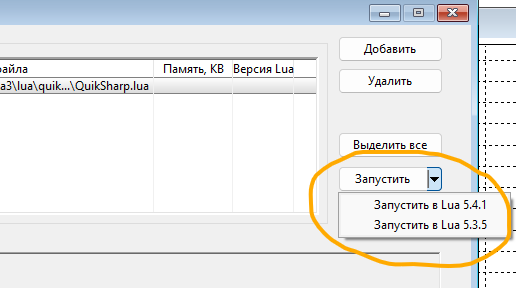
Important for newer QUIK versions. If there is a Lua version arrow next to the “Run” button, click it and choose “Run in Lua 5.3.5”. The QuikSharp script does not work in Lua 5.4.1.
Arrow next to “Run” → “Run in Lua 5.3.5”
The script should run without errors in the Lua window. By default it uses 127.0.0.1 and ports 34130 / 34131 — make sure no other program occupies them.
6
Connect in Stoxar
Open the “Connections” tab and click “Add”. Choose the adapter and enter:
· Host — 127.0.0.1
· Port — 34130
· Auto-connect — optional
Click Save, then Connect.
7
Done
Once the connection status turns “Active”, the terminal starts receiving trades, positions and results for your accounts in real time.